Three-Way Switches
This tutorial teaches you how to model three-way switches using the
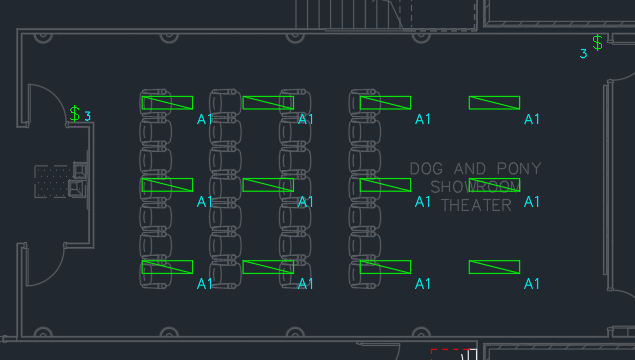
Open drawing E-1.1.
Insert Light Fixtures
Use the
Ribbon:  Insert Light Fixture
Pulldown Menu:
Insert Switches
-
Run the
Insert Switch command. The Insert Switch dialog box will open.
Ribbon:DM Electrical→Devices→  Insert Switch
Pulldown Menu:DM Electrical→Switches→Insert Switch -
Set the switch type to Threeway Switch.
-
Press the button to close the dialog box.
-
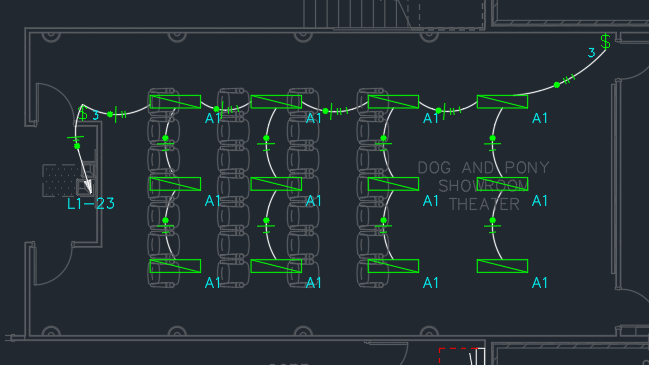
Follow the prompts at the command line to insert a switch on the two ends of the theater.
Connect Switches to Each Other
-
Run the
Add Switch to Switch Group command.
Ribbon:DM Electrical→Devices→  Add Switch to Switch Group
Pulldown Menu:DM Electrical→Switches→Add Switch to Switch Group -
Select one switch, then select the other switch.
The two switches will be linked together.
Connect Light Fixtures to Switches
-
Run the
Connect Device to Switch Group command.
Ribbon:DM Electrical→Devices→  Connect Device to Switch Group
Pulldown Menu:DM Electrical→Switches→Connect Device to Switch Group -
Select either of the switches.
-
Select all of the light fixtures.
Circuit Switches & Light Fixtures
-
Run the
Circuiting command. The Circuiting dialog box will open.
Ribbon:DM Electrical→Circuiting and Homeruns→  Circuiting
Pulldown Menu:DM Electrical→Circuiting and Homeruns→Circuiting -
Set Distribution Equipment ▾ to L1.
-
Select a circuit that is currently a space.
-
Press the button.
-
Select either of the switches.
Both switches and all of the devices will be connected to the circuit.
Draw Loops & Tick Marks
-
Run the
Draw Homerun and Loops command.
Ribbon:DM Electrical→Circuiting and Homeruns→  Draw Homerun and Loops
Pulldown Menu:DM Electrical→Circuiting and Homeruns→Draw Homerun and Loops -
Select a switch or a light fixture.
-
Follow the prompts at the command line to insert the loops and homerun.
Notice that the loops include tick marks for the switch leg and travelers.