Battery Schedule

Creates a battery calculation schedule for one or more fire alarm panels in the project.
You must be in a drafting view to use this command.
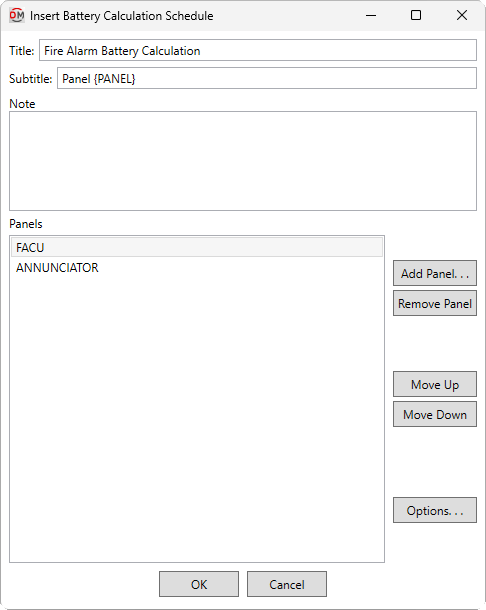
You will be prompted to select a fire alarm panel for which the schedule will be created. The Insert Battery Calculation Schedule dialog box will open:
Insert Battery Calculation Schedule Dialog Box
-
Title: The title to be used for the schedule. You can use the text
{PANEL}to automatically generate the name of the panel. -
Subtitle: A subtitle to be added below the title for the schedule. You can use the text
{PANEL}to automatically generate the name of the panel. -
Note: A note that will appear below the schedule when it is inserted on the drafting view.
-
Panels ☰ A list of the panels for which battery calculations will be displayed in the schedule.
-
Press this button to select additional panels to be displayed in the schedule.
-
Press this button to remove the selected row from the list of panels.
-
Press this button to move the selected row up in the list of panels.
-
Press this button to move the selected row down in the list of panels.
-
Press this button to open the Project Options dialog box with only the options in the Battery Calculations section visible.
Inserting the Battery Calculation Schedule on the Drafting View
To insert the battery calculation schedule on the drafting view, press the button. The settings you specified in the dialog box will be used for the schedule you insert.
You will be prompted for the insertion location of the schedule.
Specify insertion point of battery schedule:
The location you specify will be used as the top-left corner for the schedule.
There are several options that affect the default settings and overall appearance of the battery schedule, as well as how battery is calculated. Visit the Battery Calculations Project Options section for more information.