Device Edit

Allows you to edit information about specific fire alarm devices in your project.
If nothing is selected, you will be prompted to select a fire alarm device to edit.
If one or more panels are selected, the Panel Edit dialog box will open with the selected panels active.
If one or more fire alarm devices are selected, or after you select a fire alarm device, the Device Edit dialog box will open:
Device Edit Dialog Box
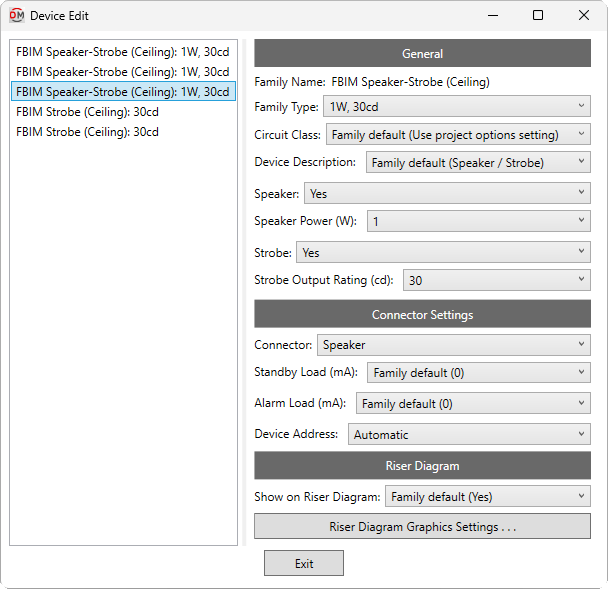
If the fire alarm device has been configured using the Family Edit command, many of the fields in this dialog box will include a Family default setting. Fields with this setting will use the same setting as the corresponding field in the family.
-
List ☰ All of the devices that were selected when the command was run.
You can select multiple devices in the list using the SHIFT or CTRL key. Only fields shared by all of the selected devices will be shown. Fields that have different values across the selected devices will display <Varies>.
General
-
Family Name: The family of the device.
-
Family Type: ▾ The family type of the device. The types in the list are based upon the device Family Name.
-
Circuit Class: ▾ Whether circuits to which the device is connected are class A or class B when calculating circuit length and voltage drop.
- Use project options setting The Default circuit class ▾ specified in the Project Options command will be used.
-
Device Description: ▾ The description displayed in calculation schedules for the device.
- Family - Type The device family and type will be used.
- Based on parameter The value for the specified parameter will be used. Press the button to select a parameter. Visit the Using Non-FireBIM Parameters for FireBIM Settings article in the knowledge base for more information.
- Set device description in instance Enter a device description in the field provided.
-
Speaker: ▾ Whether the device has a speaker.
- Speaker Power: ▾ The wattage of the speaker. If Speaker ▾ is set to Family default or No, this field is disabled.
- Specific wattage The wattage is set to the specific wattage chosen from the list.
- Based on parameter The value for the specified parameter will be used. Press the button to select a parameter. Visit the Using Non-FireBIM Parameters for FireBIM Settings article in the knowledge base for more information.
- Custom Enter a custom value in the field provided.
- Speaker Power: ▾ The wattage of the speaker. If Speaker ▾ is set to Family default or No, this field is disabled.
-
Strobe: ▾ Whether the device has a strobe.
- Strobe Output Rating: ▾ The candela rating of the strobe. If Strobe ▾ is set to Family default or No, this field is disabled.
- Specific rating The candela rating is set to the specific rating chosen from the list.
- Based on parameter The value for the specified parameter will be used. Press the button to select a parameter. Visit the Using Non-FireBIM Parameters for FireBIM Settings article in the knowledge base for more information.
- Custom Enter a custom value in the field provided.
- Strobe Output Rating: ▾ The candela rating of the strobe. If Strobe ▾ is set to Family default or No, this field is disabled.
Connector Settings
-
Connector: ▾ The electrical connector to which settings in this section will be applied. The values in this list are based upon the names of the electrical connectors in the device family.
warningElectrical connector names are stored on the device instance when it is created. If the electrical connector name is changed in the device family, device instances will update to include the new connector name and the family default settings. Any changes to the old connector name at the instance level will be lost.
-
Standby Load: ▾ The current draw in standby mode for the device.
- Based on parameter The value for the specified parameter will be used. Press the button to select a parameter. Visit the Using Non-FireBIM Parameters for FireBIM Settings article in the knowledge base for more information.
- Custom Enter a custom value in the field provided.
-
Alarm Load: ▾ The current draw in alarm mode for the device.
- Based on parameter The value for the specified parameter will be used. Press the button to select a parameter. Visit the Using Non-FireBIM Parameters for FireBIM Settings article in the knowledge base for more information.
- Custom Enter a custom value in the field provided.
-
Device Address: ▾ How the address is set for the device.
- Automatic The device address is generated automatically based upon the number and order of devices on the circuit.
- Fixed Enter a custom device address in the field provided. The device will use the specified address regardless of the properties of its circuit.
Riser Diagram
-
Show on Riser Diagram: ▾ Whether the device is inserted on the riser diagram when using the Circuit Insert command. The default setting is Yes.
-
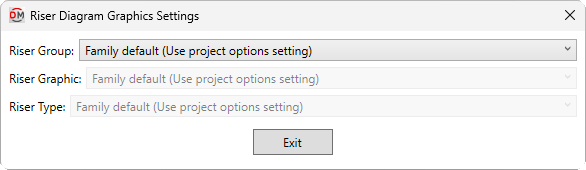
Press this button to open the Riser Diagram Graphics Settings dialog box. Use this dialog box to manage the graphics that represent the device on the riser diagram.
-
Riser Group: ▾ The graphic category used for the device when it is inserted on the riser diagram. The groups available are based upon settings in the Riser Diagram Device Graphics command.
- Use project options setting The Default device graphic group ▾ specified in the Project Options command will be used.
-
Riser Graphic: ▾ The default riser diagram graphic family used for the device. The values in this list are based upon the Riser Diagram Device Graphics command and the selected Riser Group ▾.
- Use project options setting The Default device graphic ▾ specified in the Project Options command will be used.
-
Riser Type: ▾ The riser diagram graphic type used for the selected Riser Graphic ▾.
-