Panel Insert

Allows you to add a fire alarm panel from the model to the riser diagram.
If you are in a model view, you will be prompted to specify a panel in the view or press ESC.
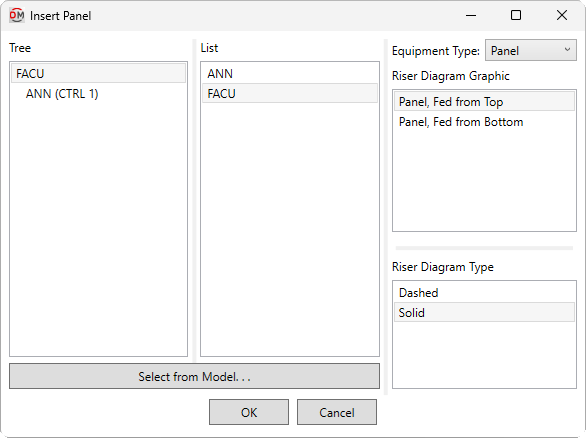
Opens the Insert Panel dialog box:
Insert Panel Dialog Box
-
Tree / List ☰ All of the fire alarm panels in the current project. They are listed in a tree corresponding to how the panels are connected to each other, and alphabetically by callout. Panels that have been inserted on the riser diagram will be highlighted.
-
Equipment Type: ▾ The type of panel to be inserted. The types available can be viewed and modified in the Riser Diagram Device Graphics command.
-
Riser Diagram Graphic ☰ The graphic family that will be used for the panel.
-
Riser Diagram Type ☰ The graphic type that will be used for the panel. The values in this list are based upon the selected Riser Diagram Graphic ☰.
-
Press this button to select a panel on the model.
The dialog box will close and you will be prompted to specify a panel.
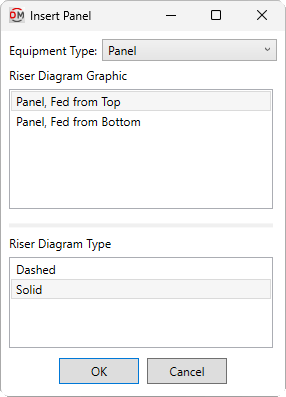
Select device in model to insert in riser diagram:Specify a panel using a view of the electrical model. Opens the Insert Panel dialog box:
-
Equipment Type: ▾ The type of panel to be inserted. The types available can be viewed and modified in the Riser Diagram Device Graphics command.
-
Riser Diagram Graphic ☰ The graphic family that will be used for the panel.
-
Riser Diagram Type ☰ The graphic type that will be used for the panel. The values in this list are based upon the selected Riser Diagram Graphic ☰.
-
Inserting the Panel
Press the button to insert the panel on the riser diagram. You will be prompted for the insertion point of the panel graphic.
Click to place a free instance (Space Bar to Rotate)
The panel will be inserted on the riser diagram.