Using Non-FireBIM Parameters for FireBIM Settings
Some device settings in the Family Edit, Panel Edit, and Device Edit commands have a Based on parameter option you can use to have the setting controlled by a family parameter or shared parameter on the device.
When you select this option, a button will appear beside or below the corresponding field. Press the button to open the Select Shared Parameter dialog box:
Select Parameter Dialog Box
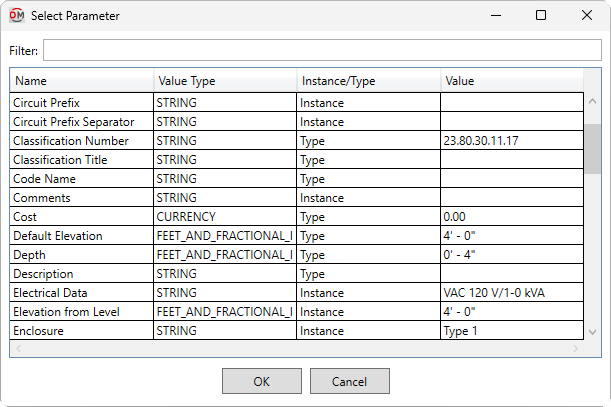
This dialog box lists all of the parameters on the device. Values in this dialog box are read-only and cannot be changed. Details about each parameter are provided to help you determine the appropriate parameter.
You can use the column headings to sort the list. The list is sorted alphabetically by Name ☰ by default.
-
Filter: Enter text in this field to filter the list to parameter names that contain the specified text.
-
Name ☰ The name of the parameter.
-
Value Type ☰ The type of value displayed by the parameter. This value corresponds to the Revit Data Type ▾ of the parameter.
warningDepending upon the FireBIM setting to which they are assigned, parameters that assign a unit to the value, such as amps, may be converted instead of using the specified value. For example, parameters with a Value Type ☰ of WATTS will be converted to amps if assigned to a FireBIM setting that uses amps, such as Alarm Load ▾.
-
Instance/Type ☰ Whether the parameter is an instance parameter or a type parameter.
-
Value ☰ The value set for the parameter. This value can change based upon the active family type for the device.
Select a parameter and press the button to close the dialog box and return to the previous dialog box. The specified parameter and its current value will be displayed for the field.