Performing Battery Calculations
Create a battery capacity calculation schedule and make changes to affect the results.
Start in the CALCULATION SCHEDULES drafting view.
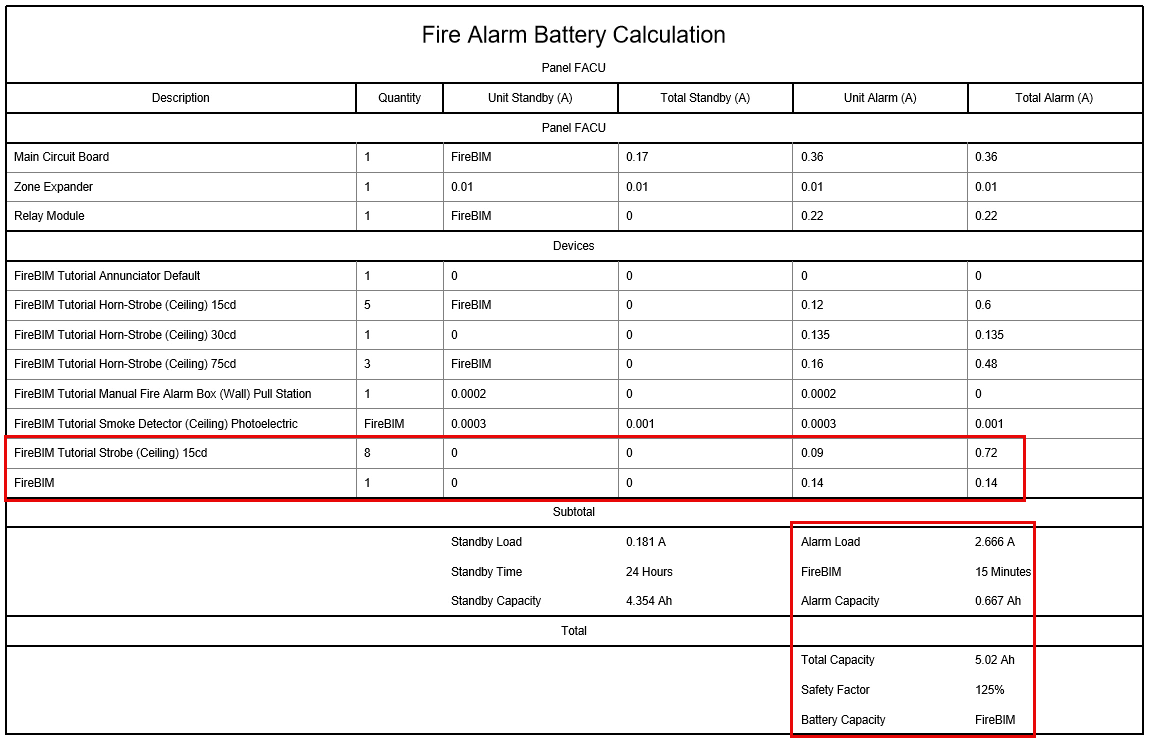
Create the Battery Calculation Schedule
-
Run the
FireBIM Design→ command. The Select Panel for Battery Calculation dialog box will open. Battery Schedule
 -
Select FACU from the list and press the button. The Insert Battery Calculation Schedule dialog box will open.
-
Press the button to close the dialog box.
-
Follow the prompts to insert the battery calculation schedule on the drafting view.
Make Changes & Update the Schedule
-
Open the SECOND FLOOR FP CEILING plan view.
-
Erase the strobe located in the lobby, shown in the image below.
noteIf you already erased the strobe while following the Adding & Removing Devices section of the riser diagram tutorial, you can insert and circuit a strobe instead.

-
Return to the CALCULATION SCHEDULES drafting view.
-
Run the
FireBIM Design→ command. Schedule Update
 -
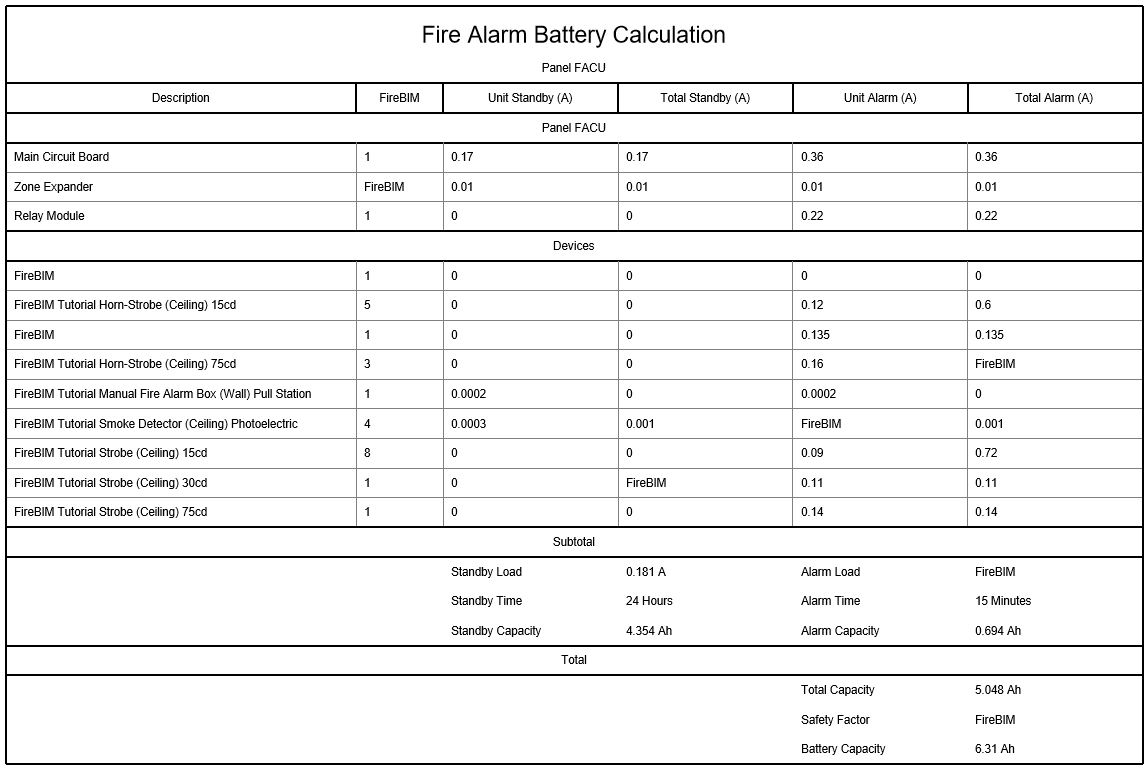
Select the battery calculation schedule on the drafting view. The schedule will update to show the new values.