Single-Line Diagram Device Graphics
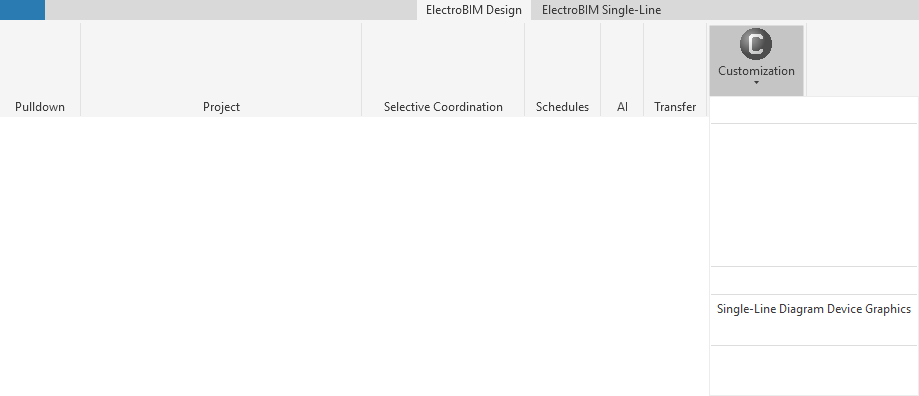
Allows you to customize the list of graphic families available to be used for equipment on the single-line diagram.
Opens the Single-Line Diagram Device Graphics dialog box:
Single-Line Diagram Device Graphics Dialog Box

Groups
This section is used to determine how graphic families are grouped and displayed in commands and fields that allow you to set single-line diagram graphics for devices.
-
Name The name that is displayed in the Equipment Type ▾ field in the Insert Create, Insert Link, and Add/Modify Graphic commands.
-
Type ▾ The device type with which the group will be associated when populating device graphics fields and lists, based upon the Revit Family Category ☰ and Part Type ▾ of the device family.
In the Insert Create command, the model families displayed in the Model Family ☰ list will be based upon this setting for the selected Equipment Type ▾.
-
PANEL The group will be displayed when specifying graphics for Electrical Equipment that have their Part Type ▾ set to Panelboard, Other Panel, or Switchboard.
-
TRANSFORMER The group will be displayed when specifying graphics for Electrical Equipment that have their Part Type ▾ set to Transformer.
In the Insert Create command, the Secondary Distribution System ▾ field will be available.
-
OTHER The group will be displayed when specifying graphics for Electrical Fixtures and Electrical Equipment that have their Part Type ▾ set to Equipment Switch.
-
-
Creates a new group.
-
Deletes the current group.
-
Moves the selected group up in the list.
-
Moves the selected group down in the list.
Graphics
This section is used to determine which graphic families are available to be selected in the active group.
-
Name The name of the graphic family that is displayed in fields and lists.
-
File Name The file name of the graphic family displayed on the single-line diagram, not including the file extension.
-
Creates a new row. The new row will use the same settings as the selected row when the button was pressed.
-
Deletes the current row.
-
Press this button to select a file for the current graphic.
-
Moves the selected graphic up in the list.
-
Moves the selected graphic down in the list.