Change Panel Schedule Template

Changes the template used by an ElectroBIM panel schedule already inserted on a drafting view using the Insert Panel Schedule command.
For information about customizing panel schedule templates, visit the Modifying Revit Panel Schedules article in the knowledge base.
You must be in a drafting view to use this command.
You will be prompted to select the panel schedule for which the template will be changed.
Select panel schedule to change the template of:
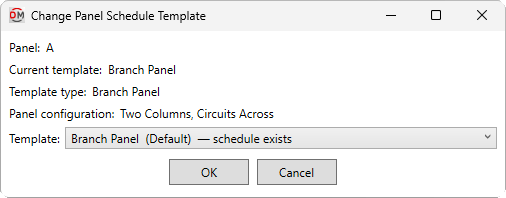
Opens the Change Panel Schedule Template dialog box:
Change Panel Schedule Template Dialog Box
-
Panel: The distribution equipment for which the panel schedule was inserted.
-
Current template: The panel schedule template currently used by the selected panel schedule.
The remaining fields can be set in the same way as when the panel schedule was inserted. Visit the Insert Panel Schedule command for more information.