Add/Modify Graphic

Allows you to add a graphic to a feeder segment, or modify the graphic for an equipment or feeder segment already inserted on the single-line diagram.
You will be prompted to specify an equipment or feeder.
Select single-line diagram item to change graphic of:
Modifying an Equipment Graphic
Specify an equipment to open the Modify Graphic dialog box:
Modify Graphic Dialog Box
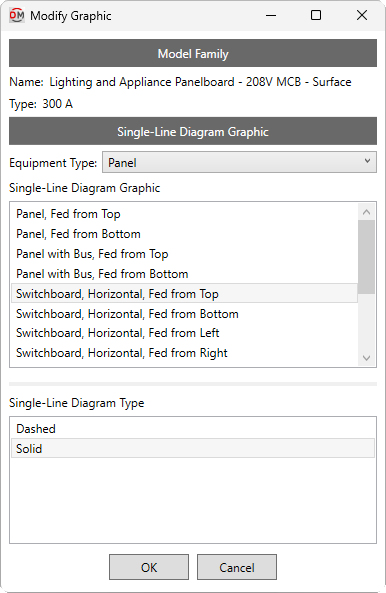
Model Family
This section displays the family and type of the selected distribution equipment or branch circuit device. This information can be used to determine the appropriate graphic.
Single-Line Diagram Graphic
-
Equipment Type: ▾ The type of equipment to be inserted. The types available and their corresponding Revit Part Type ▾ can be viewed and modified in the Single-Line Diagram Device Graphics command.
-
Single-Line Diagram Graphic ☰ The graphic family that will be used for the equipment.
-
Single-Line Diagram Type ☰ The graphic type that will be used for the equipment. The values in this list are based upon the selected Single-Line Diagram Graphic ☰.
Press the button to change the equipment graphic on the single-line diagram.
You will be asked whether to update the labels for the equipment:

-
Update labels The labels will update to the default location and tags for the equipment graphic.
-
Leave labels as they are The location and tags will not be updated. The information for the existing tags will be updated.
Adding or Modifying a Feeder Graphic
If you specify a feeder segment that already has a graphic, you will be asked whether to replace the existing graphic, add an additional graphic, or cancel the command:

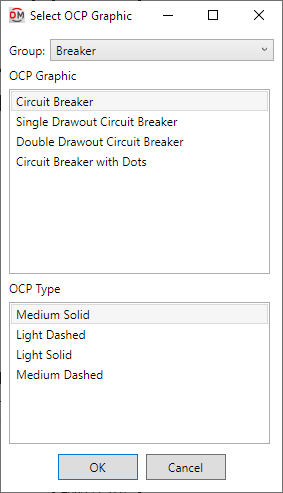
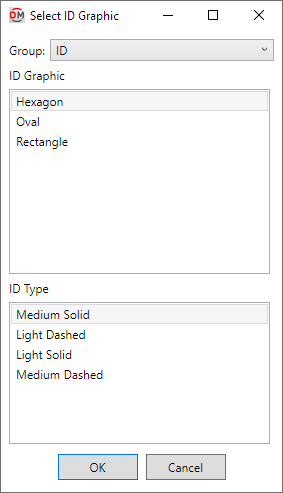
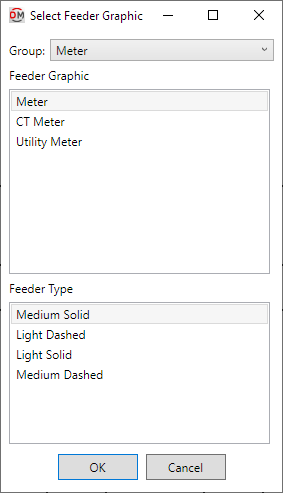
The Select OCP Graphic dialog box, Select ID Graphic dialog box, or Select Feeder Graphic dialog box will open, depending on the type of feeder segment selected:
Select OCP / ID / Feeder Graphic Dialog Box
-
Group: ▾ The type of graphic to be inserted on the feeder. The groups available are based upon settings in the Single-Line Diagram Feeder Graphics command.
-
OCP Graphic ☰ / ID Graphic ☰ / Feeder Graphic ☰ The graphic to be used for the feeder segment. The graphics available are based upon settings in the Single-Line Diagram Feeder Graphics command.
-
OCP Type ☰ / ID Type ☰ / Feeder Type ☰ The graphic type that will be used for the feeder segment. The values in this list are based upon the selected Graphic ☰.