
Download AquaBIM
Your 14-day free trial starts here. Click below to download the AquaBIM installer for Revit.
Download AquaBIMInstalling AquaBIM
Once your download finishes, follow these steps to install AquaBIM and connect it to your AI agent.
Install the software
Run the AquaBIM installer you just downloaded and follow the prompts.Open a Revit project
Open any project in Revit. It can be one of yours or an Autodesk sample project.Configure your AI agent
Run the AquaBIM → AI → Configure AI Agent command, which opens the Configure AI Agent dialog box.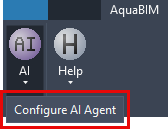
Configure Claude or Codex
Press the Configure Claude Desktop, Configure Claude Code, or Configure Codex button for the agent you want to use. The Results section will say whether the configuration was successful.Open a Claude or Codex session
Open a new session in Claude Desktop, Claude Code, or Codex to complete the connection to the MCP server.